This blog post will guide you through compiling and building the popular open source video encoding library on windows using the MinGW(Minimalist GNU on Windows).
First you need to download the x264 source code from http://x264.nl/ Or if you know how to use git, you can git clone the x264 from git://git.videolan.org/x264.git.
Then you should download MinGW from http://sourceforge.net/projects/mingw/files Download the mingw-get-inst-20111118.exe (591.9 kB) install it and during the installation steps, select all the check boxes.
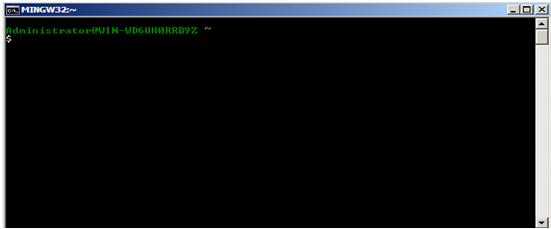
After the installation is completed, then from Start button , click All program, then click MinGW and then Click on MinGW shell, this brings up the following window
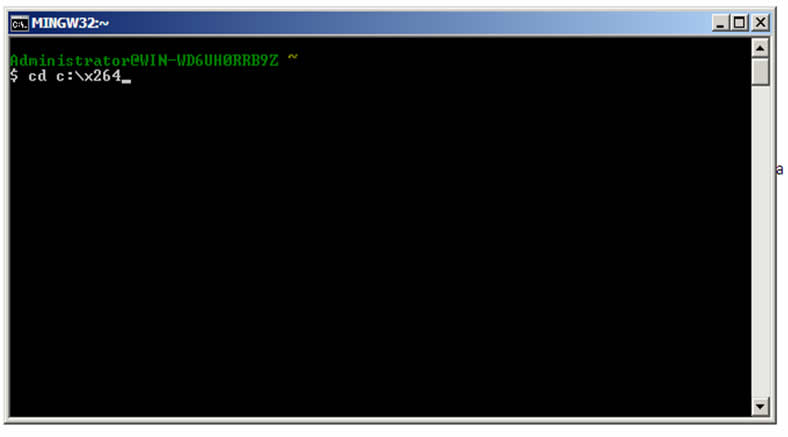
From the msys shell change your directory to the location where your x264 source code is, in my own case the x264 code is in the c: drive so I will simply Type cd c:\x264
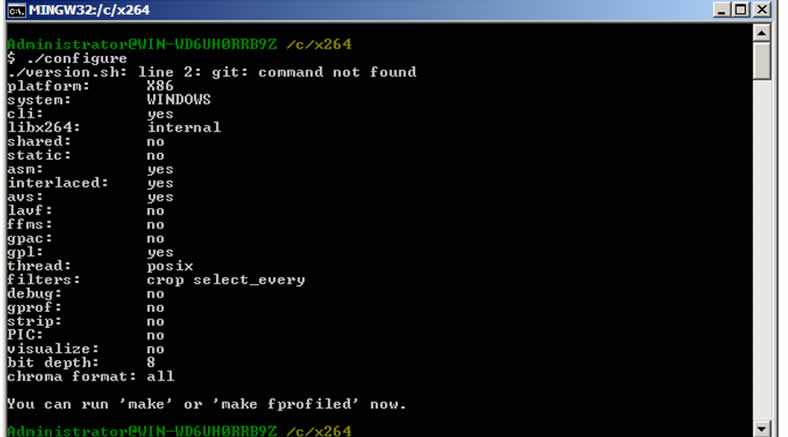
Then type ./configure and press enter, this screen waits for some seconds and the bring
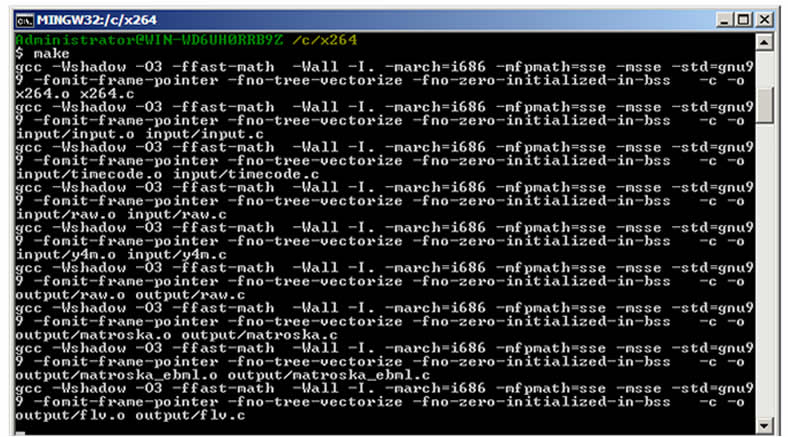
Then you can now type make and press enter, this will bring up the window below, showing the progress of the compilation process.
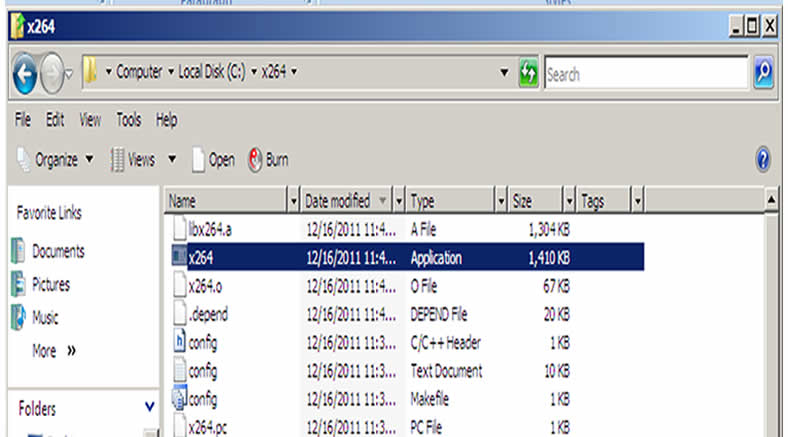
After the compilation is finished, if you look into your x264 directory you will find x264.exe file there.
Now compiling the x264 into a dynamic link library that can be used in Visual studio takes another process entirely. Open the MinGW bash once again and change the directory to the location of your x264 source code, just like you did previously.
Then type
./configure --disable-cli --enable-shared --extra-ldflags=-Wl,--output-def=libx264-120.def
or just
./configure --disable-cli --enable-shared --extra-ldflags=-Wl,--output-def=libx264.def
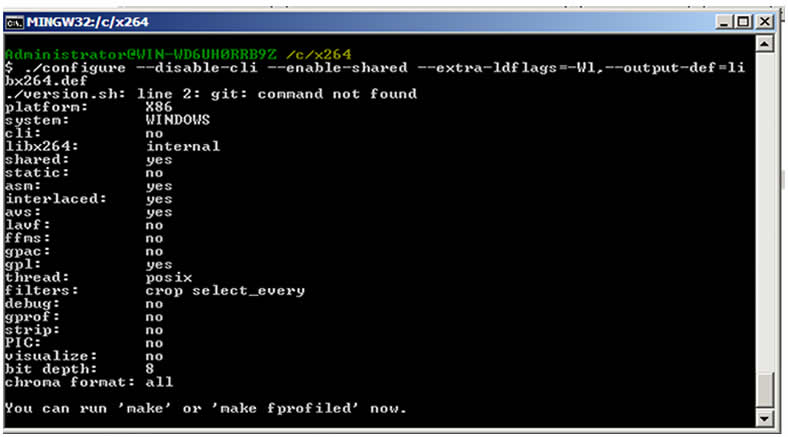
Now in libx264-120.def “120” is the version of the x264 you are using, you can find the version of the x264 you are using by opening the x264.h file in your x264 source folder you will see something like this #define X264_BUILD 120 depending on your version.
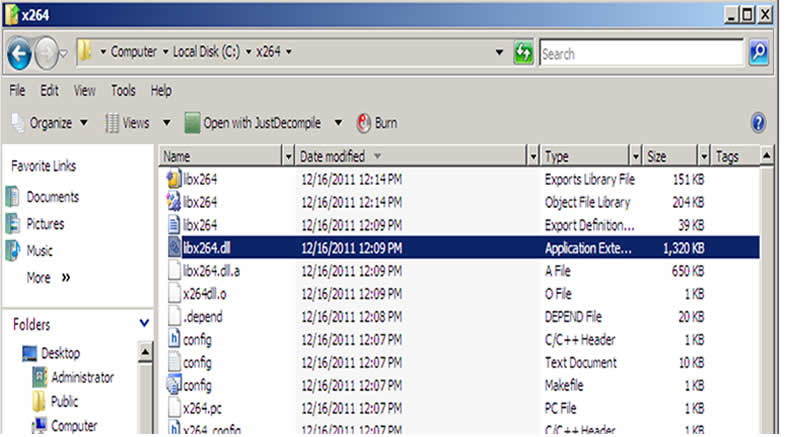
You can now type the make command and press enter and you will find the libx264-120.dll in your x264 source folder. Then rename libx264-120.dll to libx264.dll and you have you dynamic link library to work with.
If you wish to generate the Visual Studio .lib file to work with then open a Visual Studio command prompt, and change the directory to the location of the x264 source .
Then run this command
LIB /DEF:libx264.def
Then press enter
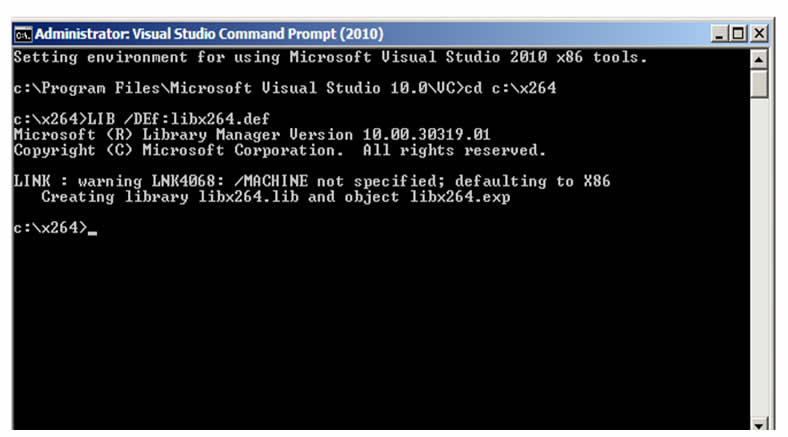
And your libx264.lib would be generated.
Comments (10)
very nice, works
@Kuno thanks.
after configuring it says "No working C compiler found"
@Suneel check to see whether the installation of your MinGW was successful, if not re-install it. It should work
Ayobami Adewole Error 1 error LNK2001: unresolved external symbol _flv_output dspx264.obj dspx264 the above linker error getting. Iam using libx264.lib. my code: videoFile = flv_output; videoFile.open_file( "flv.flv", &hout,&out) but its unable to get the definition. Is flv.o is included in libx264.lib or not. If not how can i add flv.o to libx264.lib Thank u
@Suneel, I hope you have added libx264.lib to the list of linked libraries in your project, if you have and you are still getting this error, its probably you have changed a portion in the source code before you compiled it, try and download a fresh copy of x264 source code, compile it and link it to your project, if you still get the same error let me know.
libx264.lib and lib264.dll that were built on MinGW don't work correctly with VisualC++2010. http://stackoverflow.com/questions/9240782/weird-and-unpredictable-crash-when-using-libx264-cross-compiled-with-mingw/9327617#9327617 It's work "sometime" but not anytime.
@Onetime I will look into that as soon as I have spare time
Thanks for your article - works great :)
Great! can you add instructions for compiling shared dll for 64bit ?